The three most common reasons
In most cases, the problem falls into one of these three categories. Check them in the order they are listed, as they are also the quickest to verify.
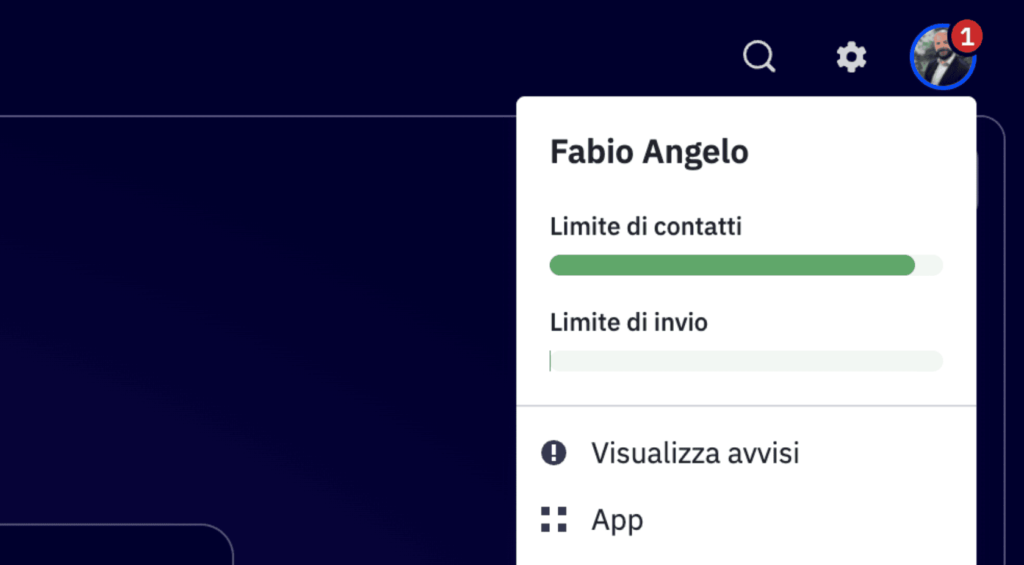
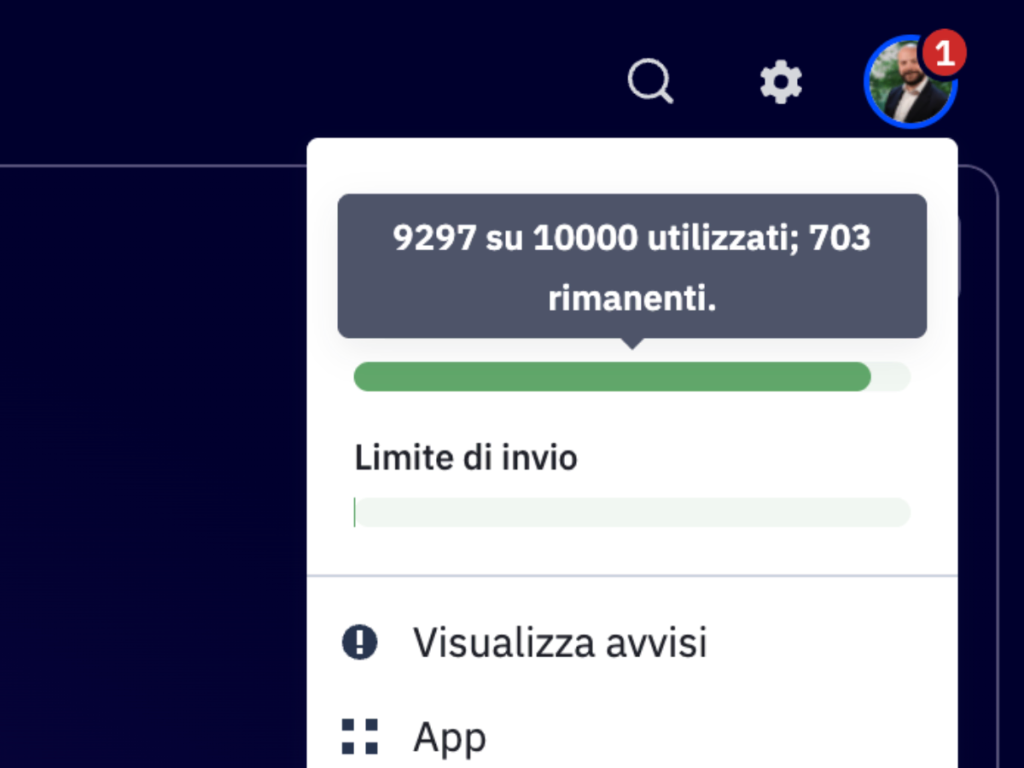
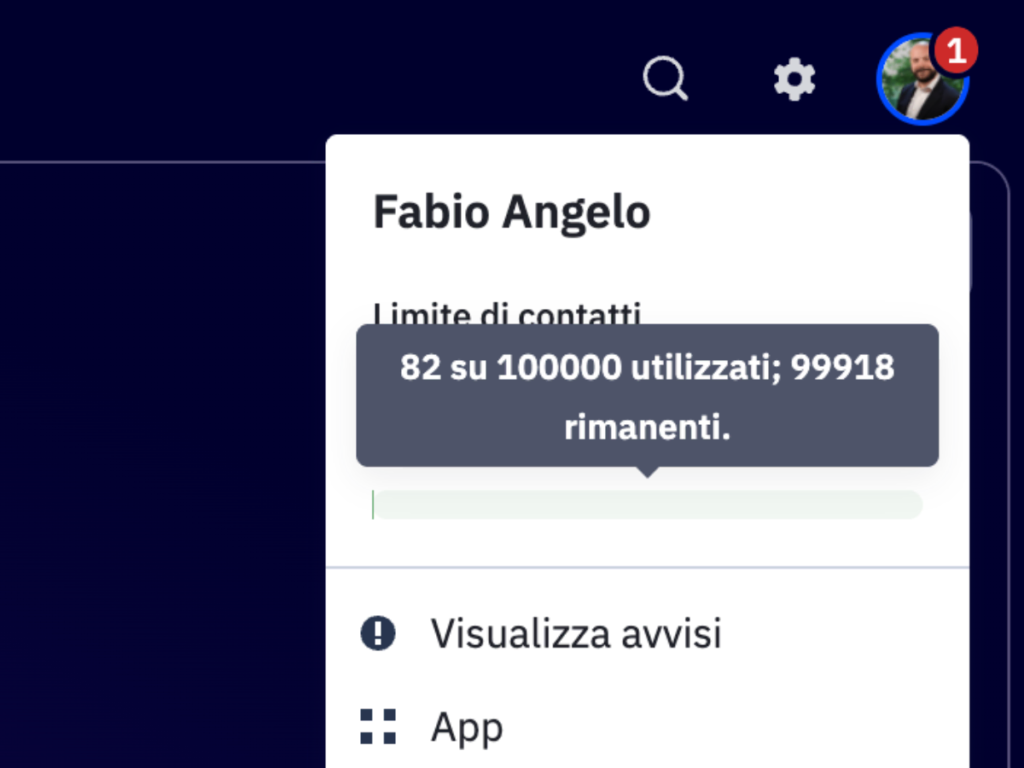
You have reached the contact limit for your plan.
ActiveCampaign sets a maximum number of active contacts based on the plan you've subscribed to. When you reach that limit, emails stop sending without any explicit warning.
To verify this, log in to your account and check the number of active contacts against your plan limit. If you are at or over the limit, you have two options: upgrade your plan, or reduce the number of active contacts by deleting or archiving inactive ones.
If you want to understand how to strategically manage inactive contacts without losing useful data, you can find a complete guide here: How to automatically delete inactive contacts in ActiveCampaign
You have run out of available monthly emails
Some ActiveCampaign plans have a monthly limit on the number of emails you can send, not just the number of contacts. If you've sent high-volume campaigns or automations, you may have used up your available quota before the end of the month.
In this case, the solution is either to upgrade your plan or wait for the monthly renewal. If this limit causes you recurring problems, it might be worth considering a higher plan or optimizing the frequency of your communications.
Remember that you can save up to 36% on your ActiveCampaign subscription by transferring it to an authorized reseller like us at ActiveMax. You can find everything explained by clicking here: ActiveCampaign discount
3. The contact was not added to a list
This is the most underestimated and one of the most frequent issues for those using automations. In ActiveCampaign, a contact can exist in the database but not be associated with any list. Contacts not associated with a list cannot receive emails, either through campaigns or automations.
The reason is technical but makes sense: each list carries privacy rules that apply to all contacts within it. If a contact is not part of any list, ActiveCampaign has no consent rules to refer to and will not proceed with sending.
If your automation creates or imports contacts but doesn't explicitly add them to a list, emails won't be sent. Ensure that your automation flow includes an “Add contact to list” action before any email sending steps.
If you are unsure about how to correctly structure an automation, book your free call with me now, click here.
Other checks to perform if the problem persists
If you have checked the three cases above and the problem is still not resolved, proceed with these additional checks.
4. Check the contact's customer journey in the automation
If you are using an automation and want to understand what happened to a specific contact, you can view their path directly within the flow. Open the contact's profile, scroll down to the automations section at the bottom of the page, and click on the automation's name. Then, click “View” to access the path visualization.
Once you open the automation, locate the email sending block. Next to the block, you'll find one of two indicators: a red icon means the step was skipped or generated an error; hover your mouse over it to read the detailed message. A green icon means the email was sent correctly, and the problem lies elsewhere.
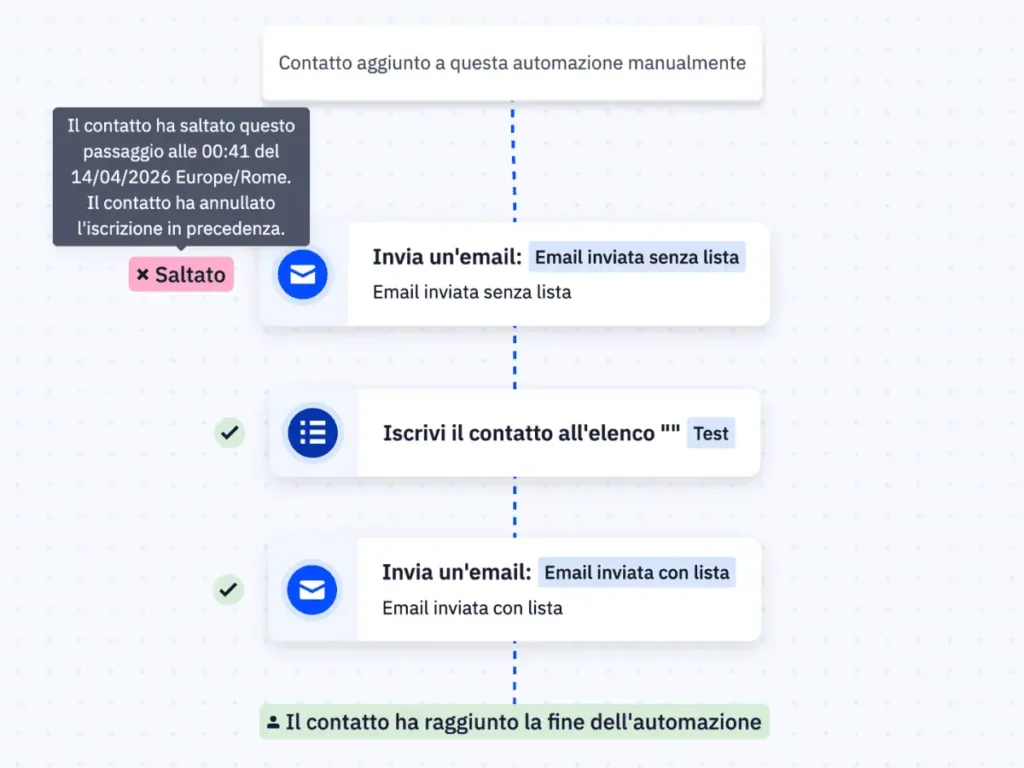
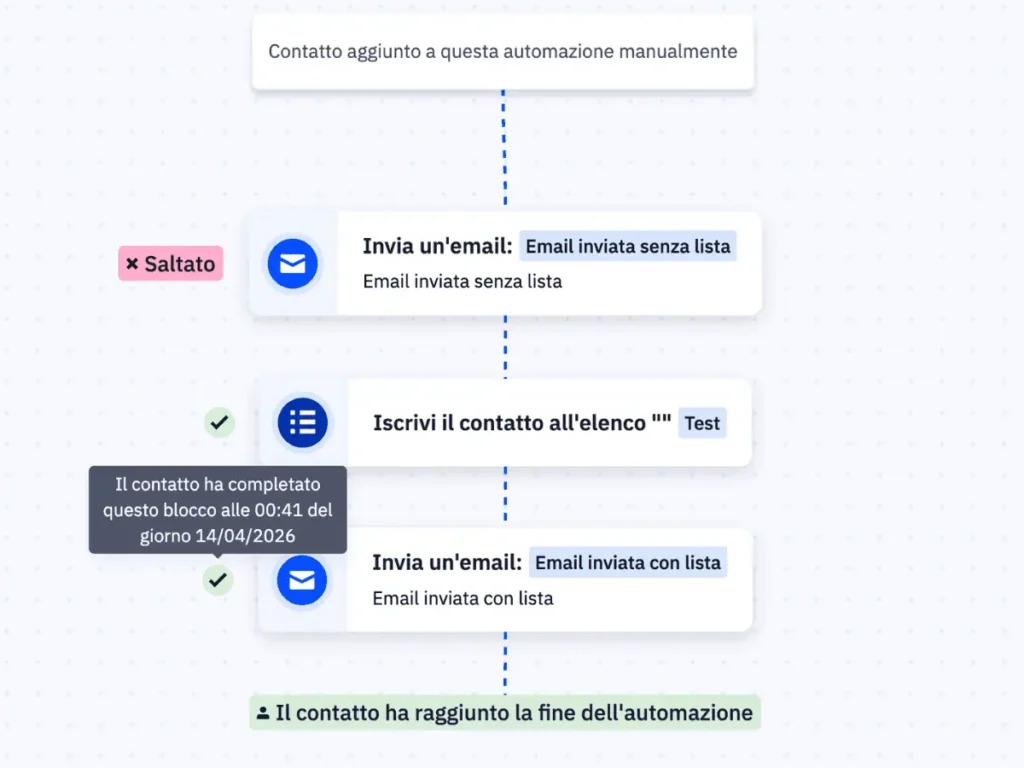
The images above show a practical example: the first email is skipped because the contact is not subscribed to any list. Immediately after, the automation subscribes the contact to the list, and the second email is sent without any problems. This is exactly the type of sequence you need to check when emails aren't arriving.
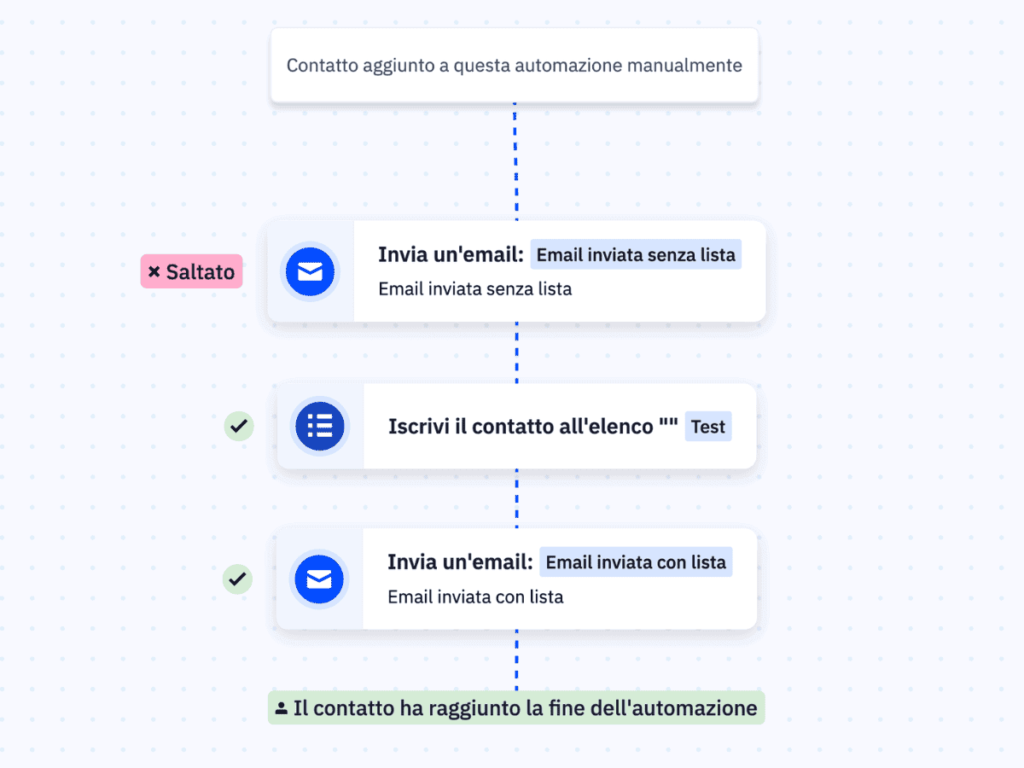
This check is particularly useful when emails are sent to some contacts but not others, as it allows you to identify exactly where the flow is interrupted.
5. Check the contact's customer journey in automation
If you're using an automation and want to understand what happened to a specific contact, you can view their customer journey within the flow. Access the automation and search for the contact. Next to each step, you'll find an indicator: a green checkmark means the step was completed successfully, and a red X indicates an error occurred. Hover over the red X to read the problem details.
This check is particularly useful when emails are sent to some contacts but not others, as it allows you to identify exactly where the flow is interrupted.
6. Test automations and campaigns separately
If you still can't pinpoint the problem, run this test: if you normally use automations, try sending a manual email to yourself via a campaign. If you normally use campaigns, try sending via a simple automation.
This allows you to understand if the block concerns the entire account or just one of its functions. If emails are sent in one case and not the other, the problem is limited to that specific function, and you can focus your search there.
How to prevent future blockages
Most blocks can be prevented with two simple habits: regularly monitoring the number of active contacts against your plan's limit, and ensuring that any automation creating new contacts always includes an add-to-list action before any sending.
If you want to set up an automatic monitoring system or review the structure of your automations to avoid these problems, book your free call with me now, click here.
Book a free call with me
I can help you directly if you find yourself in one of these situations:
- Emails are not sending and you can't figure out why
- You have reached your contact limit and want to figure out how to optimize your database.
- Do you want to save up to 36% on your ActiveCampaign subscription
- Your automations are not working as expected
- You want to review the structure of your automations to avoid future blocks.
The first call is free. Book now by clicking here.
